DJI Fly App: The Complete Guide
The DJI Fly app is the command center for every modern DJI consumer drone - and understanding it well makes the difference between a safe, productive flight and an avoidable incident. Whether you just unboxed a Mini 4 Pro or you've been flying for years, there are settings and features in DJI Fly that aren't obvious from the interface alone.
The DJI Fly app is DJI's official app for piloting and managing drones in the Mini, Air, Avata, and Neo series. It replaced the older DJI GO 4, which is still used for older models - Phantom 4 and original Mavic Pro. If you bought a DJI Mini 4 Pro, Mini 3 Pro, Air 3S, Air 3, or Avata 2, DJI Fly is the only official app that works.
This guide covers everything: setup, each function in the interface, airspace awareness, flight modes, and the most common mistakes beginners make.
Compatibility: Which Drones and Phones Work
Not every phone runs DJI Fly reliably. The app requires Android 8.0 or iOS 14.0 as a minimum, but runs stably from Android 10 and iOS 15 onward. DJI maintains an official list of compatible devices updated on their website.
Drones compatible with DJI Fly:
- DJI Mini (SE, 2, 2 SE, 3, 3 Pro, 4 Pro)
- DJI Air 2S, Air 3, Air 3S
- DJI Neo
- DJI Avata, Avata 2, Avata 360
- DJI Pocket 3 (action camera, not a drone)
Older models - Phantom 4, Mavic Pro, Mavic 2 - still use DJI GO 4. There is no cross-support between the two apps.
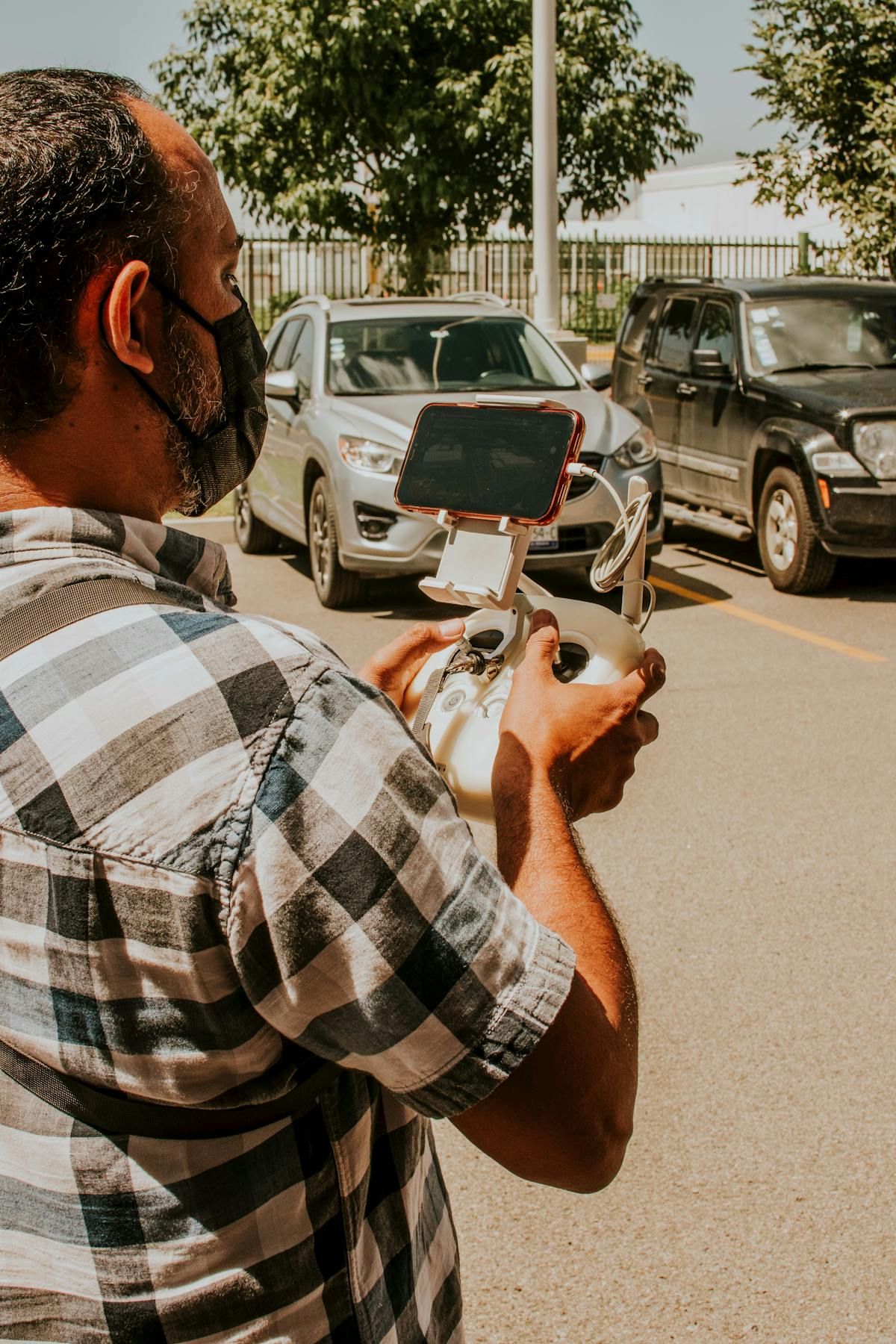
If you use RC 2 or RC Pro controllers with an integrated screen, DJI Fly comes pre-installed on the device. For RC-N1 and RC-N2 controllers (without a screen), you need to install the app on your phone and connect via Lightning or USB-C cable.
Installation and First Connection
Download DJI Fly directly from the App Store or Google Play. On some Android devices, Google Play may not have the latest version - in that case, downloading from the official DJI website as an APK ensures you get the most current release.
To connect the drone for the first time:
- Power on the drone and controller
- Connect your phone to the controller via cable (RC-N) or wait for automatic connection (RC 2)
- Open DJI Fly - it detects the drone automatically
- Create or sign in to a DJI account (required to activate the drone)
- Complete the firmware activation process - the app may require an update before the first flight
Drone activation is mandatory and links the serial number to your account. This enables technical support and, in case of theft, appears in the product history.
Main Interface: What Each Element Means
The DJI Fly interface follows a clear layout divided into four zones:
Top bar - camera and settings
- Toggle between photo and video mode
- Resolution, frame rate, and format settings (JPEG, RAW, MP4, MOV)
- Remaining microSD card storage indicator
- GPS, drone battery, and signal strength status
Right side - exposure parameters
- EV (exposure compensation), ISO, and shutter speed in Manual mode
- Real-time histogram for exposure assessment
- Color profile selection (Normal, D-Log M, HLG) - available on compatible models
Bottom bar - flight modes and safety
- Normal / Cine / Sport: Normal is the default; Cine slows all movements for smoother shots; Sport disables obstacle avoidance and maximizes speed
- QuickShot and Hyperlapse: shortcuts to automatic flight modes
- Safety: maximum altitude, maximum distance, and Return to Home settings
- Control: stick sensitivity and gimbal speed
Integrated map Displays the drone's position and the pilot's position via GPS. Tap to expand the map and view DJI FlySafe GEO zone restrictions. Red areas indicate zones where flight is automatically blocked; yellow areas require prior authorization.
GEO Zones and Airspace in the US
One of DJI Fly's most important safety features - and one of the most misunderstood - is its GEO Zone system. When you open the map before a flight, DJI Fly overlays airspace restriction data sourced from DJI's FlySafe database:
- Red zones: no-fly areas (typically within 5 miles of major airports, military installations, Washington D.C. restrictions). The drone will refuse to take off unless unlocked.
- Yellow zones: advisory areas requiring caution and often authorization (controlled airspace, temporary flight restrictions, stadiums during events).
- Blue zones: altitude-restricted areas.
Important: DJI's GEO zones are not a substitute for official FAA authorization. For flights in controlled airspace (Class B, C, D, and certain E areas), US pilots must obtain authorization through LAANC (Low Altitude Authorization and Notification Capability) via apps like Aloft, AirMap, or the FAA's own DroneZone portal.
Once you have a LAANC authorization, you can unlock the corresponding GEO zone in DJI Fly by entering your FAA authorization code in the app's unlock section under Safety settings. This allows the drone to take off in areas it would otherwise block.
Always check airspace using a LAANC-enabled app before any flight, even if DJI Fly shows the area as clear - database updates may not be perfectly synchronized.
Intelligent Flight Modes
DJI Fly consolidates all automated modes into two main shortcuts: QuickShots and Hyperlapse.
QuickShots
Pre-programmed automatic maneuvers that generate cinematic clips. The pilot selects a subject on screen, chooses the QuickShot, and the drone executes the movement autonomously:
| QuickShot | Movement |
|---|---|
| Dronie | Flies backward and upward, revealing the scenery |
| Circle | Orbits the subject while keeping it centered |
| Helix | Rises in a spiral around the subject |
| Rocket | Ascends vertically with camera pointed straight down |
| Boomerang | Oval trajectory - moves away, ascends, and returns |
| Asteroid | Flies backward, rotates 180°, descends in a sphere effect |
ActiveTrack (automatic subject tracking) is also accessible from this area. On the Mini 4 Pro and Air 3, ActiveTrack 360° lets you control the camera angle independently of the drone's movement during tracking - ideal for solo content creators who need hands-free shots.
Hyperlapse
Available in four modes: Free (fixed camera during timelapse), Circle (continuous orbit), Course Lock (straight-line trajectory), and Waypoint (custom route). The app automatically calculates the interval between shots and generates the final MP4 - no additional editing required.
Master Shots
Available on the Mini 4 Pro and Air 3, Master Shots executes a sequence of QuickShots automatically and edits the clips into a short video with a soundtrack. Useful for quick results without any editing workflow.
Critical Safety Settings
Before each flight, verify these settings in the Safety menu:
Maximum altitude: by default, DJI Fly limits the drone to 400 feet (approximately 120 meters) - aligned with FAA regulations for operations in uncontrolled airspace. Do not modify this value without understanding the legal implications. If you have explicit FAA authorization for higher altitudes, you can adjust this limit in the Safety settings.
Return to Home (RTH): sets the altitude the drone uses when returning automatically in case of signal loss or critically low battery. Configure this above the highest obstacle in the flight area. A tree or building between the drone and the takeoff point can cause a collision during RTH.
Obstacle sensors (APAS): in the Control menu, verify that obstacle avoidance is active. The modes are:
- Bypass - the drone actively avoids obstacles by calculating an alternative route
- Brake - stops when it detects an obstacle without maneuvering around it
- Off - no protection (default in Sport mode)
Low battery alerts: set the critical battery level at which you want the drone to initiate automatic landing. The default is 10% for emergency auto-landing; 30% as the first warning. For beginners, returning to home when the app shows 30% is a good habit.
Flight Logs and SkyPixel
DJI Fly records the history of each flight with GPS coordinates, duration, maximum distance traveled, and altitude - useful data for commercial operators who need to document flight activities for records or clients.
The app includes access to SkyPixel, DJI's aerial media sharing platform, and offers 10 GB of free cloud storage. For pilots who fly frequently in 4K, that space fills quickly. The practical solution is to use the microSD card as primary storage and sync only final, selected clips to the cloud. To compare which DJI drone line pairs best with the app's features, see our complete guide to every DJI drone.
For commercial operations, DJI Fly's flight log is useful for documenting compliance with FAA regulations - particularly the requirement that Part 107 pilots maintain records of their commercial operations.
FAQ
Sources: DJI Fly - Official Download Page | DJI - Compatible Device List | FAA - LAANC | DJI FlySafe - GEO System
More like this
Related Articles
Drone Remote ID Explained: Do You Need One in 2026?
Remote ID is a digital license plate for drones. See who needs it in the US, UK and EU, the 3 ways to comply, module costs and the…
Best Cheap Drones With Camera in 2026: 6 Picks Under $500
Looking for a cheap drone with a good camera? We compare 6 budget picks from $149 to $450 by real flight time, gimbal, rules and h…
How High Can a Drone Legally Fly? Limits by Country (2026)
The FAA caps drones at 400 feet; the EU, UK and Australia cap them at 120 meters. See the exact legal limit for your country and w…